

Starlink Guide — Case Kit + Battery
This page explains how to use the Starlink case kit (antenna + battery), and how to monitor your terminals via GSMS: real-time location, data usage, and monthly history.
Tip: bookmark this page so you can find it quickly if you need it.
🔋 Battery included
📶 Wi-Fi assigned per terminal
📍 GSMS tracking
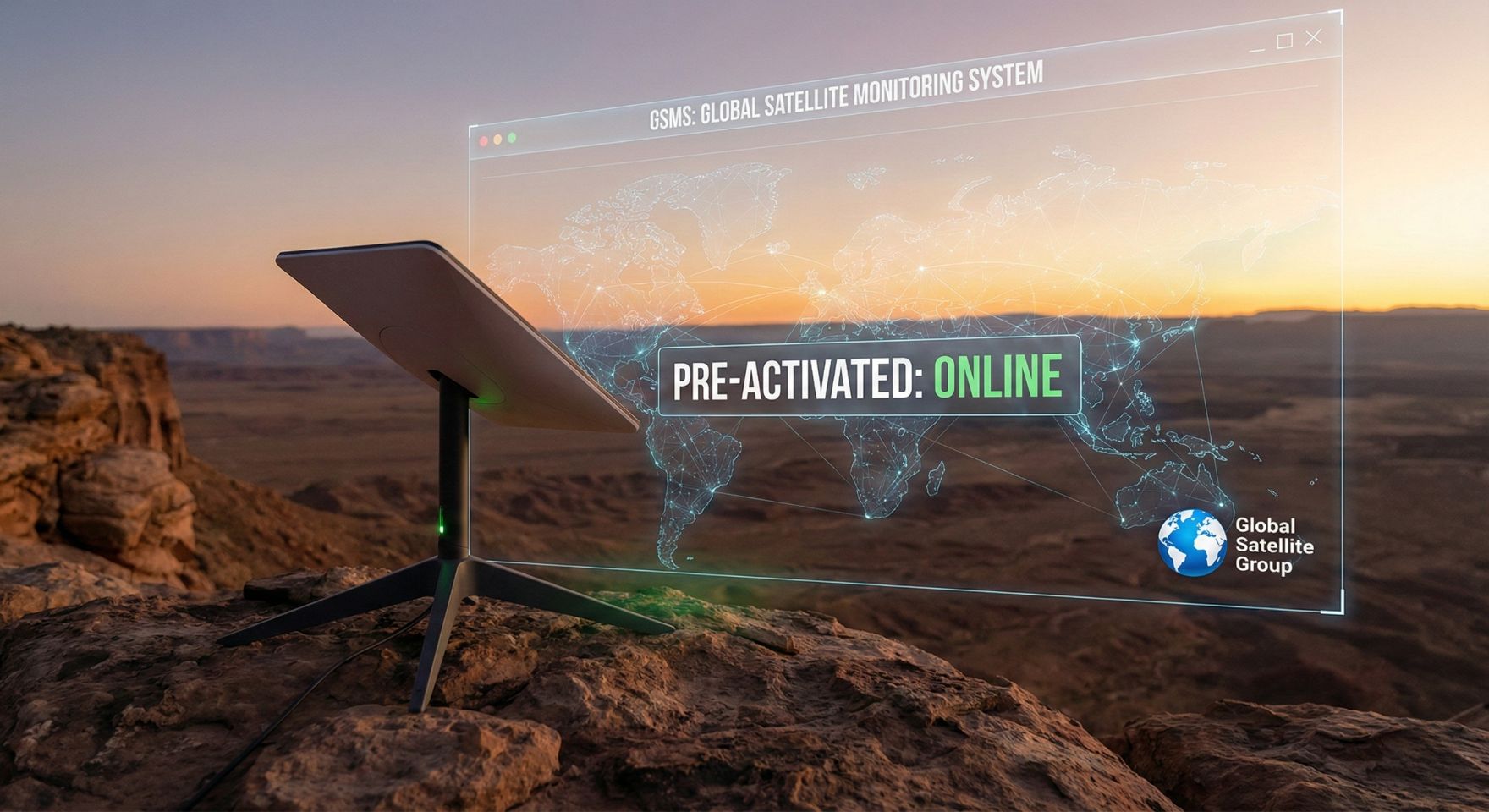
Getting Started — Case Kit + Battery (≈ 3 minutes)
Each case is assigned to a specific terminal. Follow the steps below in order.
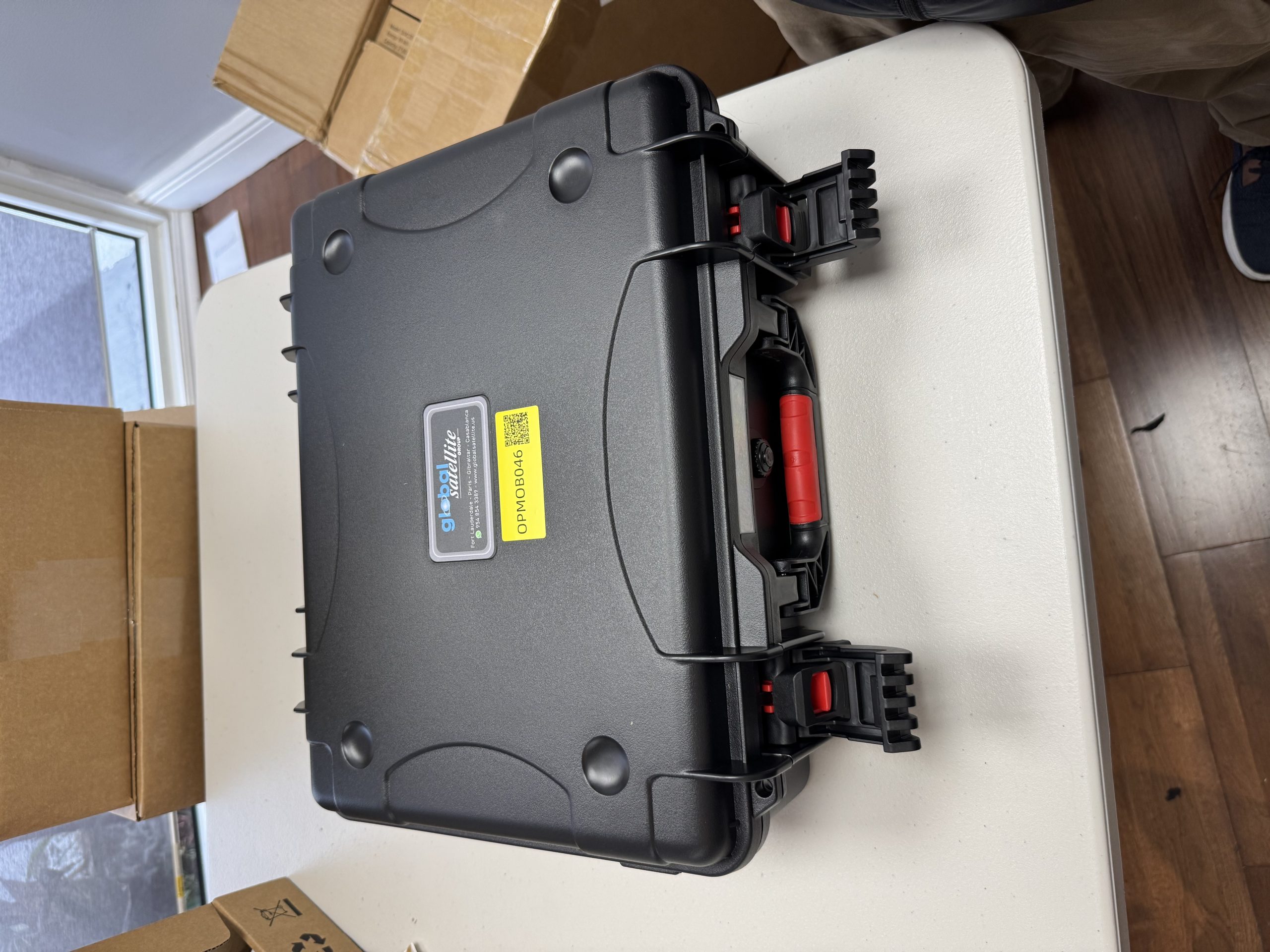
Assigned caseTerminal ID is shown on the label.
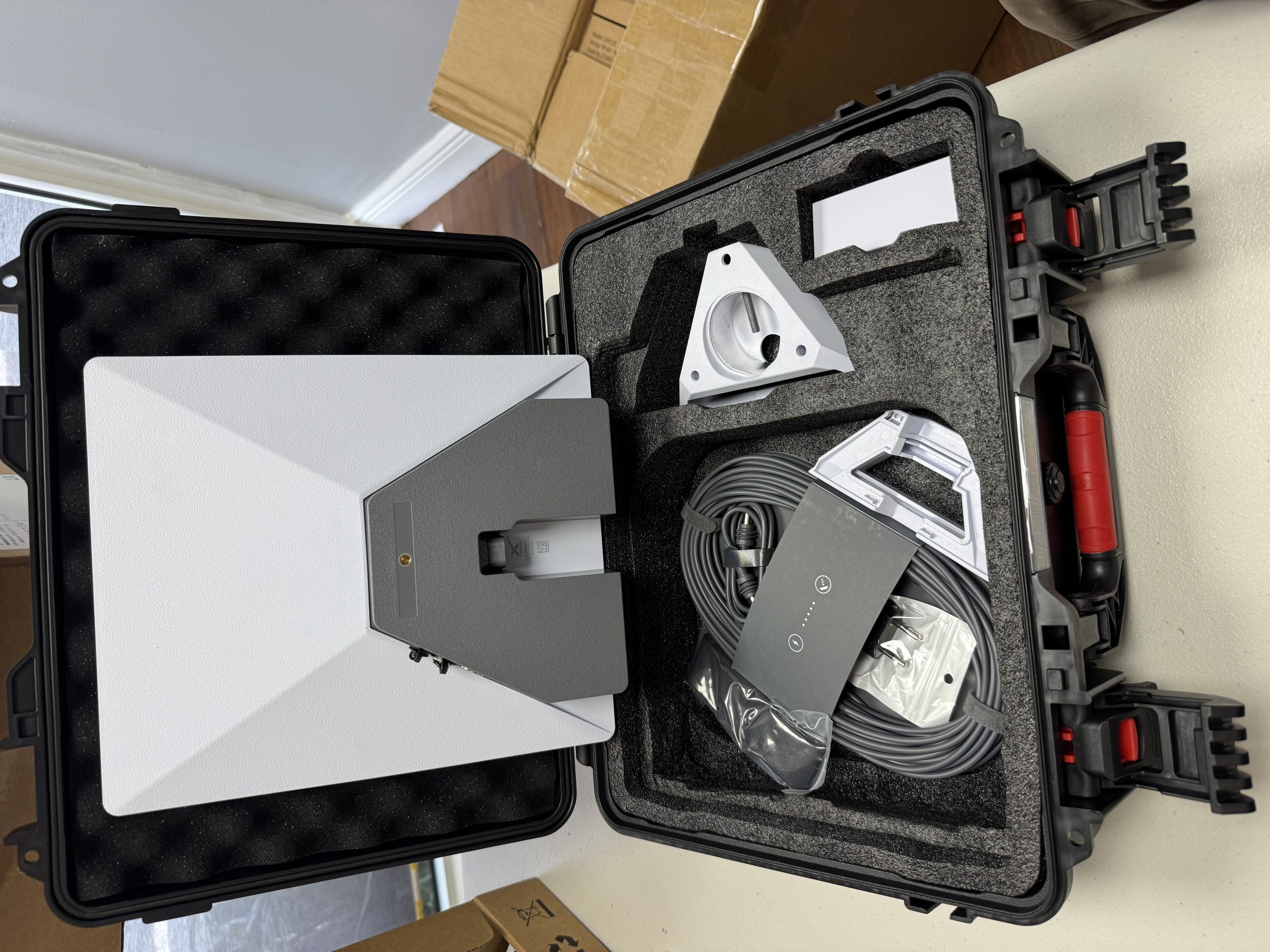
Case openCheck accessories and start charging the battery.
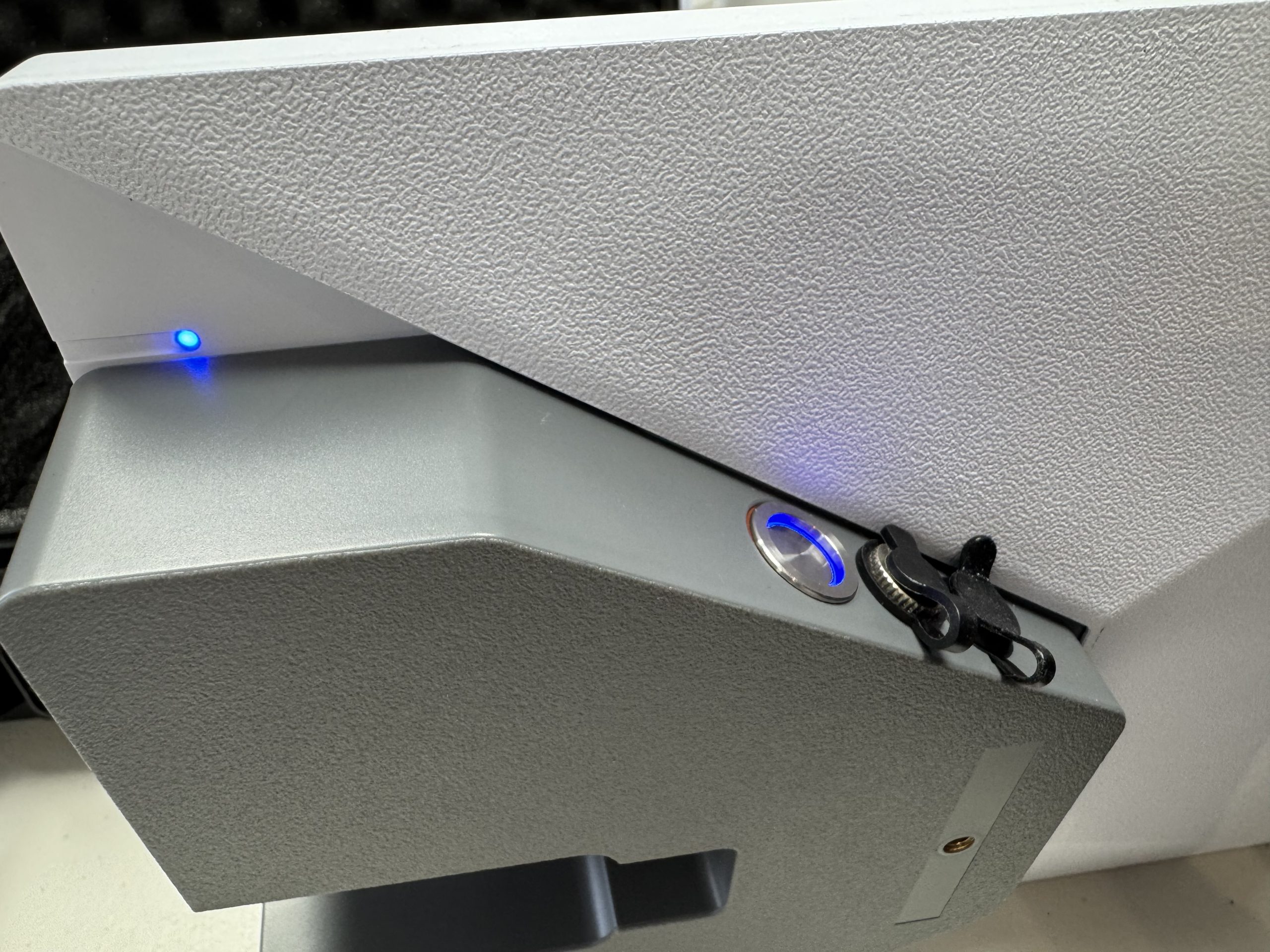
AntennaPlace outside with a clear, unobstructed view of the sky.
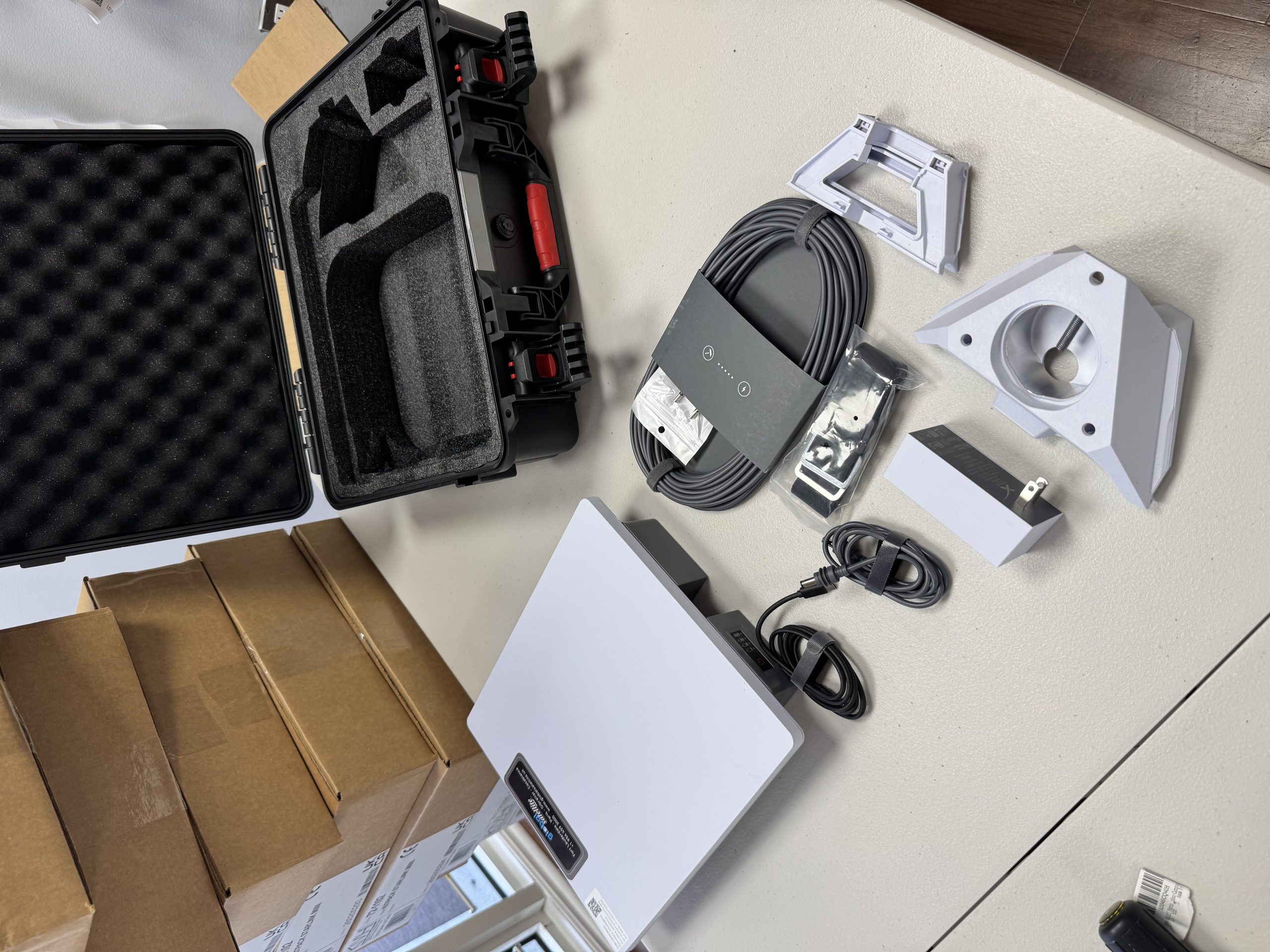
Kit contentsAntenna, cables, mount, adapter, battery.
1) Open the case & charge the battery
- Open the assigned antenna case (ID shown on the label).
- Start charging the battery until fully charged.
- You can inspect all the equipment (cables / accessories) upon receipt.
2) Install the antenna outdoors
- Place the antenna outside in a location with a clear, unobstructed view of the sky.
- Turn on the battery.
- Optional: you may leave the power cable connected to the battery if preferred.
3) Connect to Wi-Fi (assigned name + password)
- At this point, Wi-Fi is available.
- Network name (SSID) = the assigned terminal name (e.g. OPMOB001).
- Password = assigned per unit (e.g. STLnK@001).
- Connect your devices to the Wi-Fi and start using the internet.
✅ Tip Write down the Wi-Fi name + password for your terminal (support may ask for these).
📍 Terminal tracking Open GSMS to check the location, status (Online/Offline), and data usage.
End of day
- At the end of the day, please return the case and assigned equipment as directed by your supervisor.
- Store the equipment properly and turn off the battery (or leave charging if instructed).
If you have a problem
- Contact your assigned Administrator (first priority).
- Otherwise: support@globalsatellite.us / +1-954-459-3002
- Include the terminal ID (e.g. OPMOB046), the time the issue occurred, and a GSMS screenshot if possible.
Daily Use
Simple rules
- Keep the antenna stable and with a clear view of the sky.
- Avoid obstructions: trees, buildings, metal structures.
- Check the status in GSMS (Online/Offline) if you are unsure.
Moving the kit
- When possible: turn off the battery, move the kit, then turn it back on.
- Wait a few minutes for stabilization / signal acquisition.
Best Practices
- Clear sky view = best performance.
- Secure cables to prevent accidental disconnection.
- Do not mix kits: always keep the case with its assigned ID.
- Charge the battery before use (if requested by the team).
Troubleshooting
Open the section that matches your issue and follow the steps.
A) The battery / equipment does not turn on
- Check that the battery is charged.
- Check all connections (cables fully inserted).
- Try another outlet / charger if available.
- If still not working → contact your assigned Administrator and include the terminal ID.
B) The terminal Wi-Fi network does not appear
- Wait 2–3 minutes after turning on.
- Move closer to the antenna.
- Restart: OFF for 10 sec → ON.
- If still missing → contact support with the terminal ID.
C) Connected to Wi-Fi but no internet
- Wait 5 minutes (first signal acquisition may take time).
- Improve the sky view for the antenna.
- Restart the kit (battery OFF / ON).
- Check in GSMS whether the terminal shows as Offline.
D) Slow speed / unstable connection
- Most common cause: obstructions → move the antenna to a clearer sky position.
- Avoid enclosed areas / thick walls / metal.
- Send a GSMS screenshot (location + usage) to support if needed.
E) Terminal shows Offline in GSMS
- Check battery is ON + location has a clear sky view.
- Wait 5–10 minutes (reporting refresh delay).
- If still Offline → send terminal ID, time, location, and a GSMS screenshot.
GSMS — Global Satellite Monitoring System
GSMS centralizes the management of your terminals: real-time location, status (Online/Offline), data usage, and monthly history.
📍 Real-time locationInteractive map and terminal position.
📊 Usage trackingConsumption, quota, and control.
🗓 Monthly historyTrends, matrix, and CSV/Excel export.
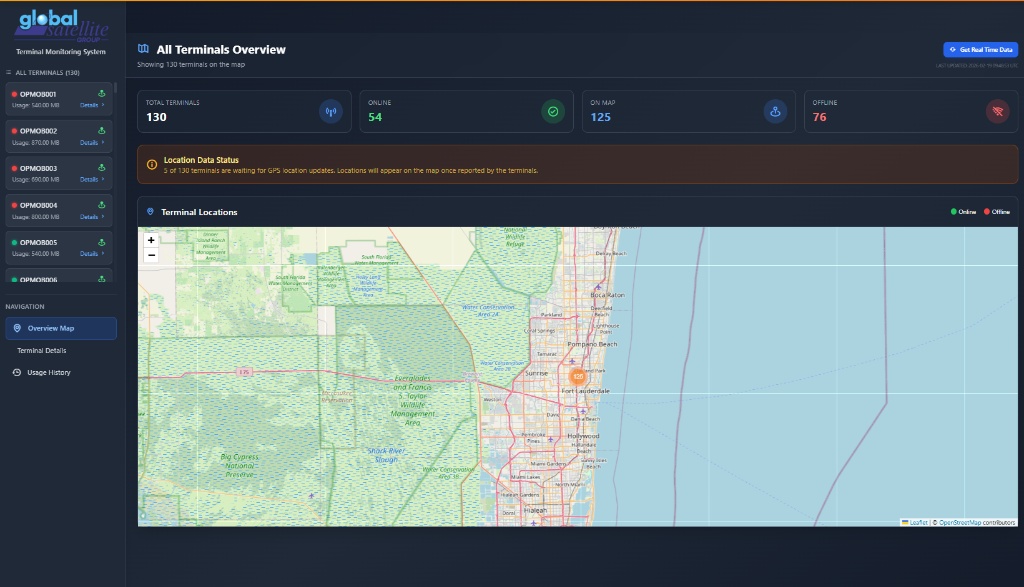
Overview — Terminals & MapView all terminals, their statuses, and positions on the map.
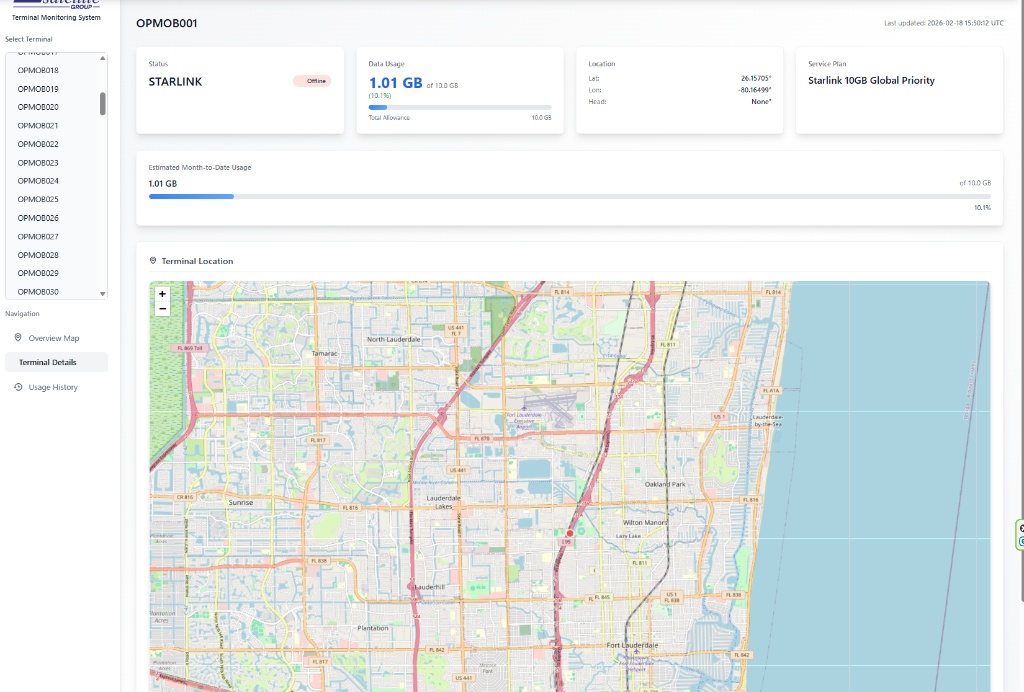
Terminal detailsStatus, plan, location (lat/long), and current month usage.
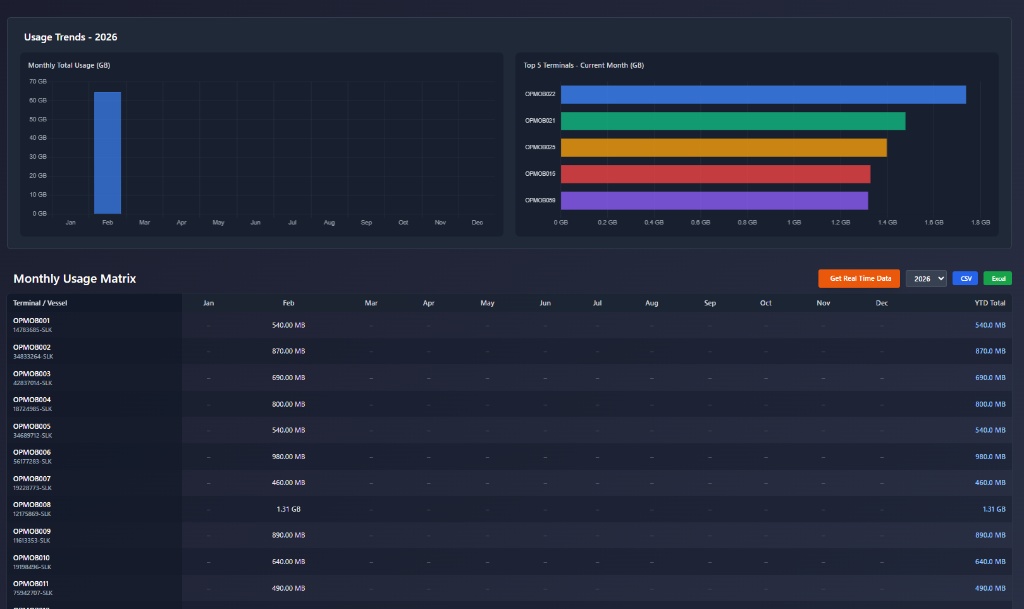
History & usage reportsCharts, top terminals, monthly matrix, and exports.
Access GSMS at: globalsattrack.com
Support & Assistance
For faster handling, please send the following information:
- Terminal ID (e.g. OPMOB###)
- Issue type (Battery / Internet / Offline in GSMS / Slow speed)
- Location (city / country)
- Time the issue occurred
- GSMS screenshot (if available)
Urgent Add URGENT + the terminal ID in your message subject line.
Website: www.globalsatellite.us